Carrier Management
Redesigned how carriers are reviewed and onboarded.
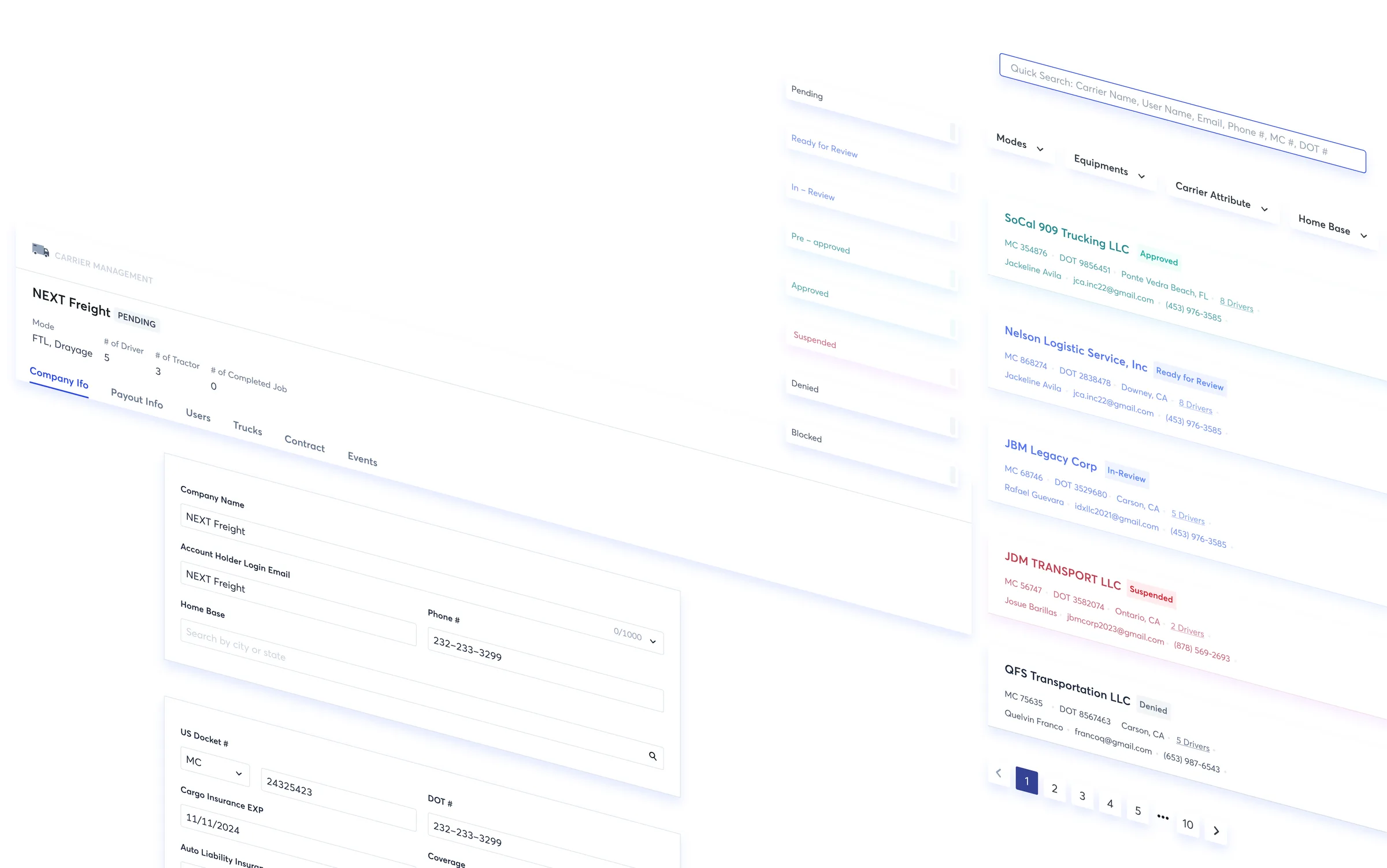
In this comprehensive UX design project, I undertook the challenge of enhancing carrier management experience. Recognizing the critical role that carriers play in the transportation ecosystem, I set out to streamline and optimize the user experience for our onboarding team to effectively manage and onboard carriers. In addition, I worked with the product manager to refactor the structure of our carriers/drivers/trucks so that it would be clear to the user who's managing this.
The Team
- Product Manager
- Product Designer
- Engineering Team
- Carrier Onboarding Team
My Role
- Analyzed existing carrier management tool and functionalities
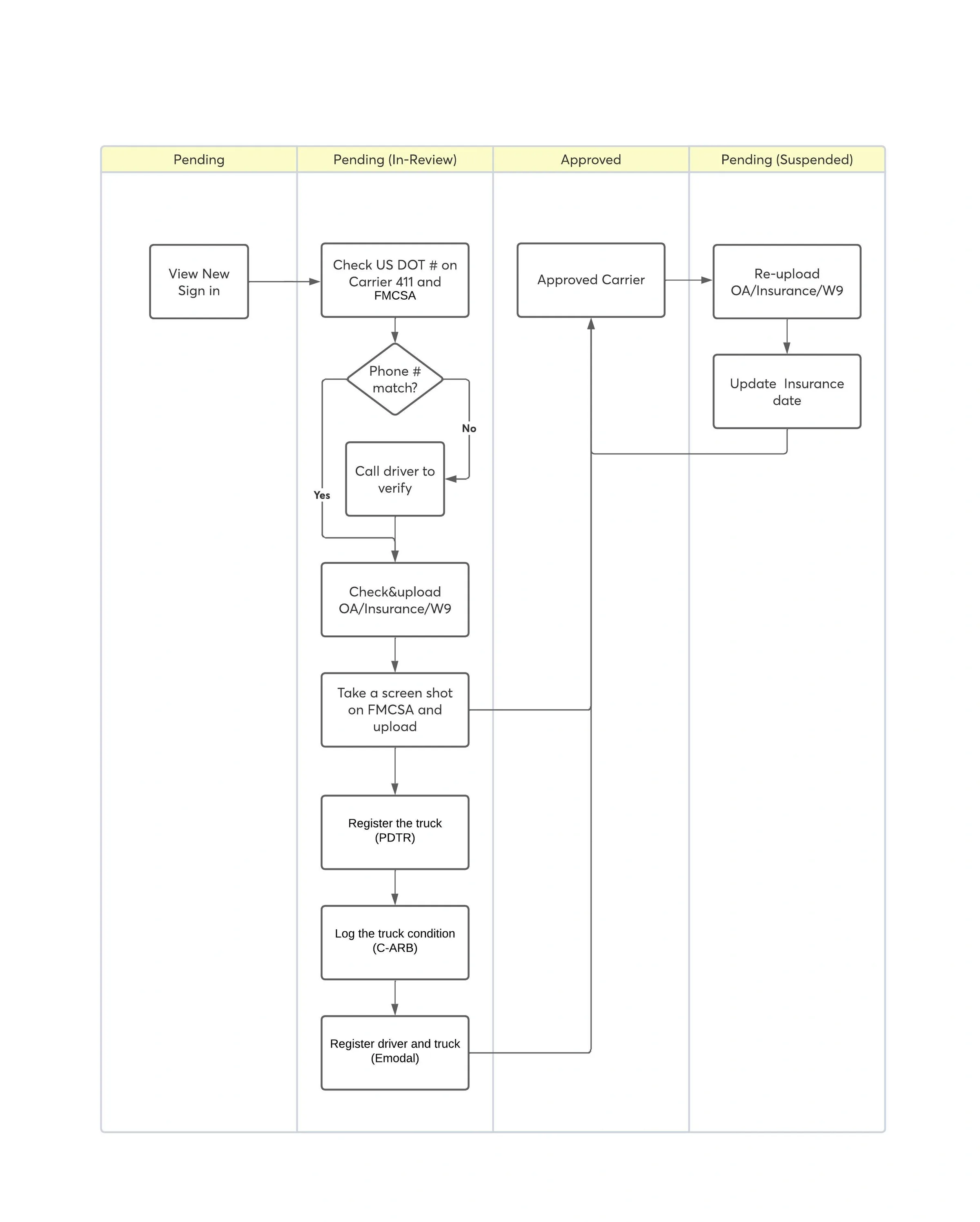
- Researched current user tasks, workflows and pain points
- Proposed new carrier account structure and state machine
- Reviewed with user on proposed design & integrations
- Worked with the product manager & stakeholders to align the project
Time Spent
6 months
Year of 2021
Product Goal
- Deprecate legacy carrier management tool
- Improve the user experience for managing carriers and reduce the speed & hurdle to approve qualifying carriers
- Resolve some hard-stuck pain points for existing tools and enable functionalities for business needs
Discovery
Before diving into the design, we need to understand what the current carrier management tool (legacy system) looks like and what needs to be improved from the users' perspective.

User — Carrier Onboarding Specialist
Carrier onboarding specialists review and approve/reject new carriers. They also need to make sure the carriers stay legible to haul with us after they are approved.

Why do we need to review and manage carriers?
We need to:
- Validate the account is signed up by legal carrier
- Identify what types of loads the carrier can haul
- Make sure all required information and documents are gathered
- Onboard/Train carriers to get familiar with our platform (mobile app, carrier web portal, etc.)
Some user quotes
“We can NOT change the account type from OO¹ to Dispatcher² or Fleet Driver³.”
“When a driver calls in, it’s difficult to search his/her account only by the name.”
“It’s difficult to find the carrier packet (info)⁴ for different drivers.”
“We can NOT tell whether an account is a new sign-up or a carrier that was approved before.”
- OO (Owner Operator) is the individual driver who owns a truck.
- Dispatcher usually refers to the business owner who owns multiple trucks and dispatches his/her fleet to complete the loads.
- Fleet driver is the employee of a dispatcher, they usually don’t own truck.
- Important information (data field or digital document) of a carrier business entity.
Problem Summary
After collecting feedback and done a few discovery sessions with our direct users, I found that there are different type of issues causing the bad user experience.
1. User interface issues
OO/Driver and dispatcher are on 2 different pages: whenever users (from our carrier onboarding team) search an account by a driver name, they don’t always know the account type of this driver, if they don’t find it on the OO/Driver list page, they will have to switch to the Dispatcher list to search again.
The information architecture of carrier’s info is disoriented. Carrier info lives in different modals depends on the account types.
2. Current account structure is not ideal
In real life scenario, a user’s role changes over time. There are drivers start working as owner operators, once they earn enough money, they can afford to purchase more trucks and hire fleet drivers to haul loads for them. However, there’s no way in our system to turn an OO account into a Dispatcher account. This has created a lot inconvenience for both our internal (carrier onboarding team) users and carriers.
3. State machine does NOT satisfy all business cases
We don’t have enough carrier status to describe what’s going on with every carrier precisely.
Example 1: Once a user starts the reviewing process with a new carrier account, there’s no way to indicate that the account is under review. Without knowing the account has been worked on, another user might start to work on the same account.
Example 2: Approved carrier’s status turns to “pending” state if the insurance is expired, user is not able to tell that this was an approved carrier or a new sign up carrier that is waiting for approval.
Direction Alignment
Based on the discovery, I shared the major problems and potential solutions with the product team. We had couple discussion on how we can prioritize this different pieces because the scope of the project is bigger than we expected.
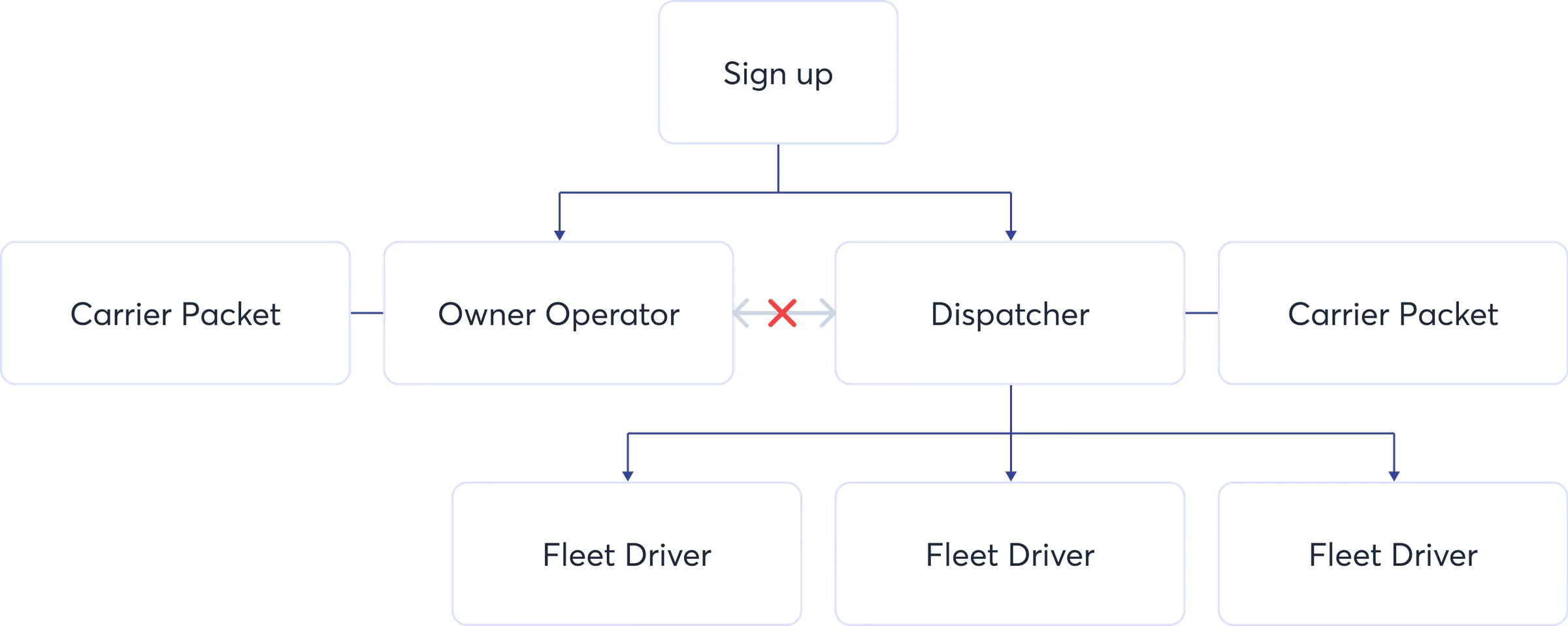
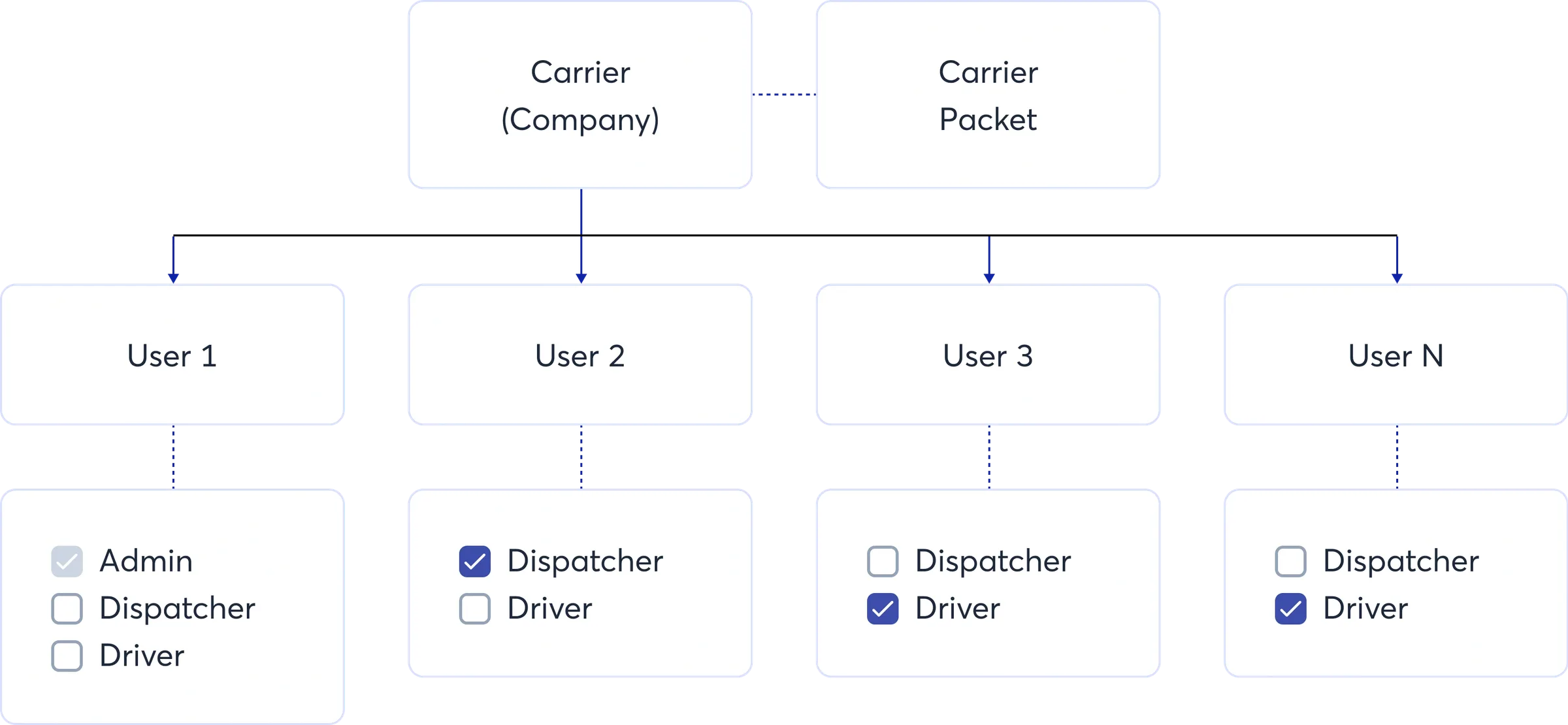
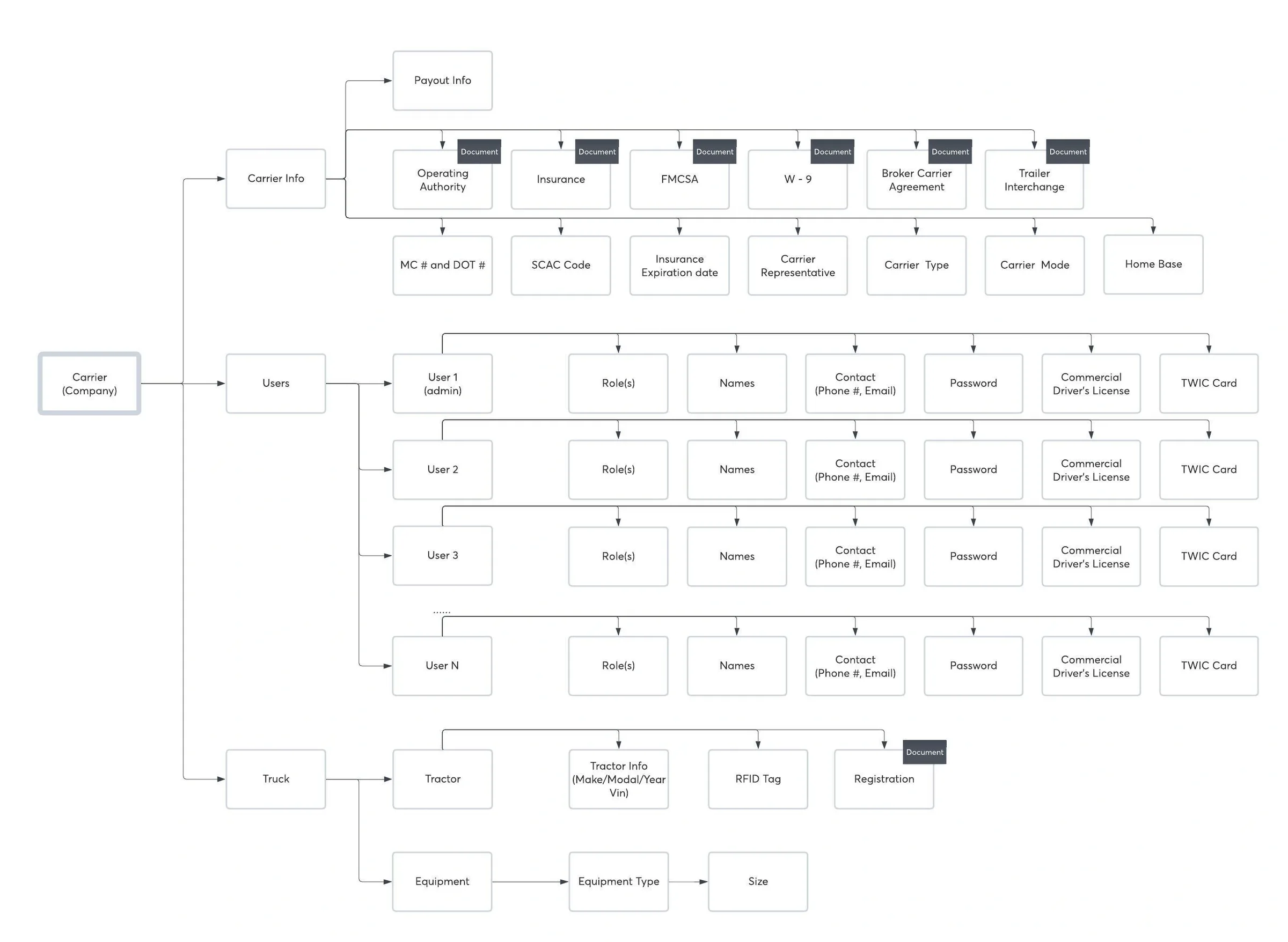
Proposed new account structure
- A new sign-up will create a carrier entity that associates with an admin account.
- Admin account holder can create multiple user accounts under this carrier entity.
- If a carrier entity has only one child account, the account needs to be both admin and driver roles, system will consider this carrier entity as OO.
- If a carrier entity has more than two child account checked with driver role, system will consider this carrier entity as Fleet.
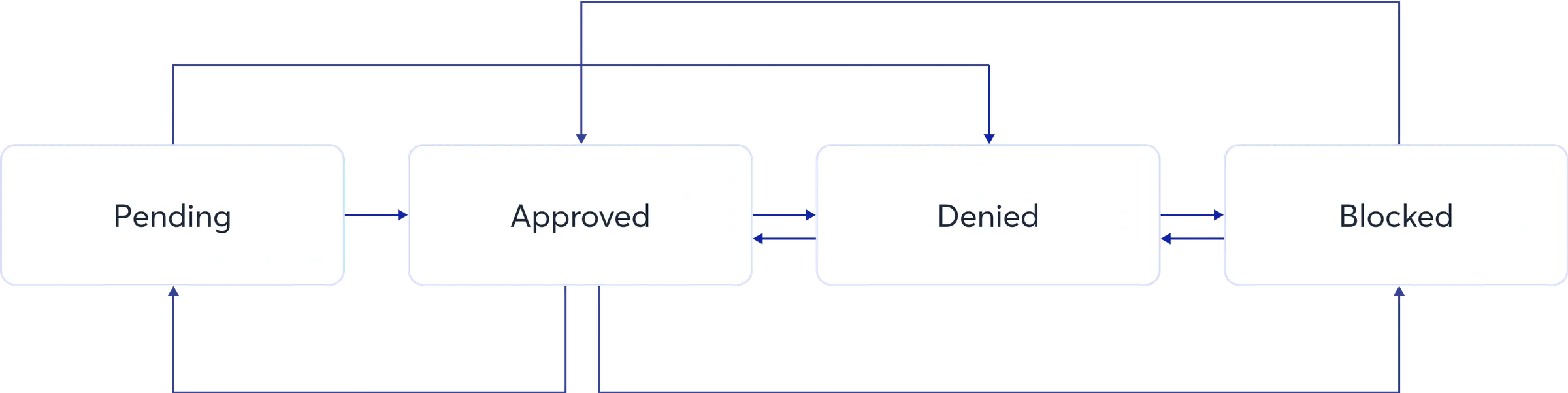
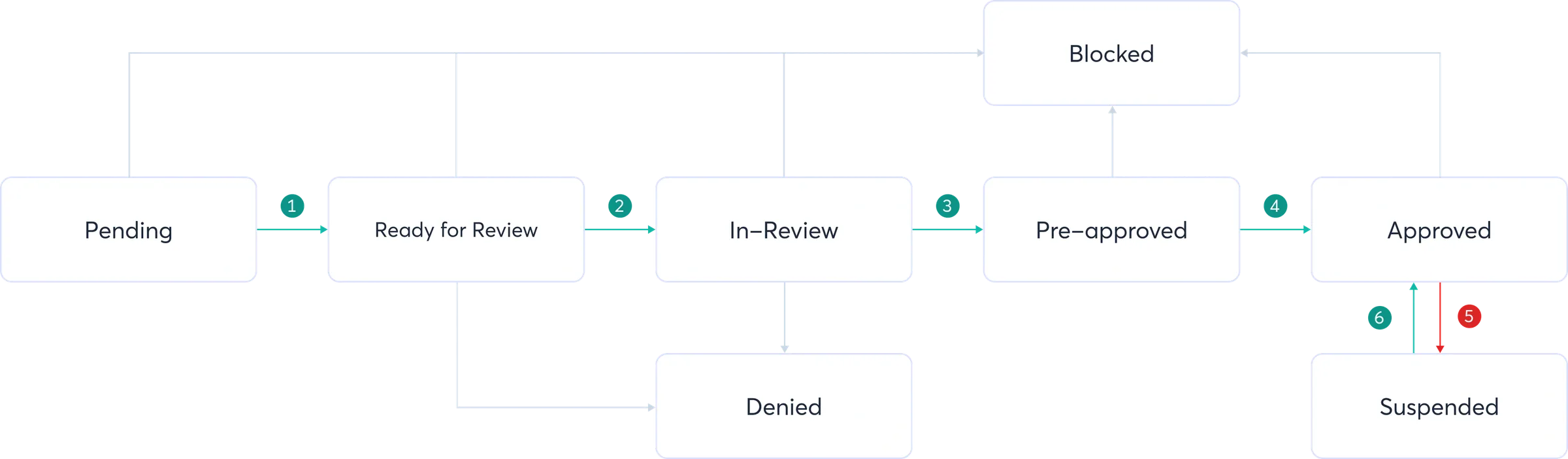
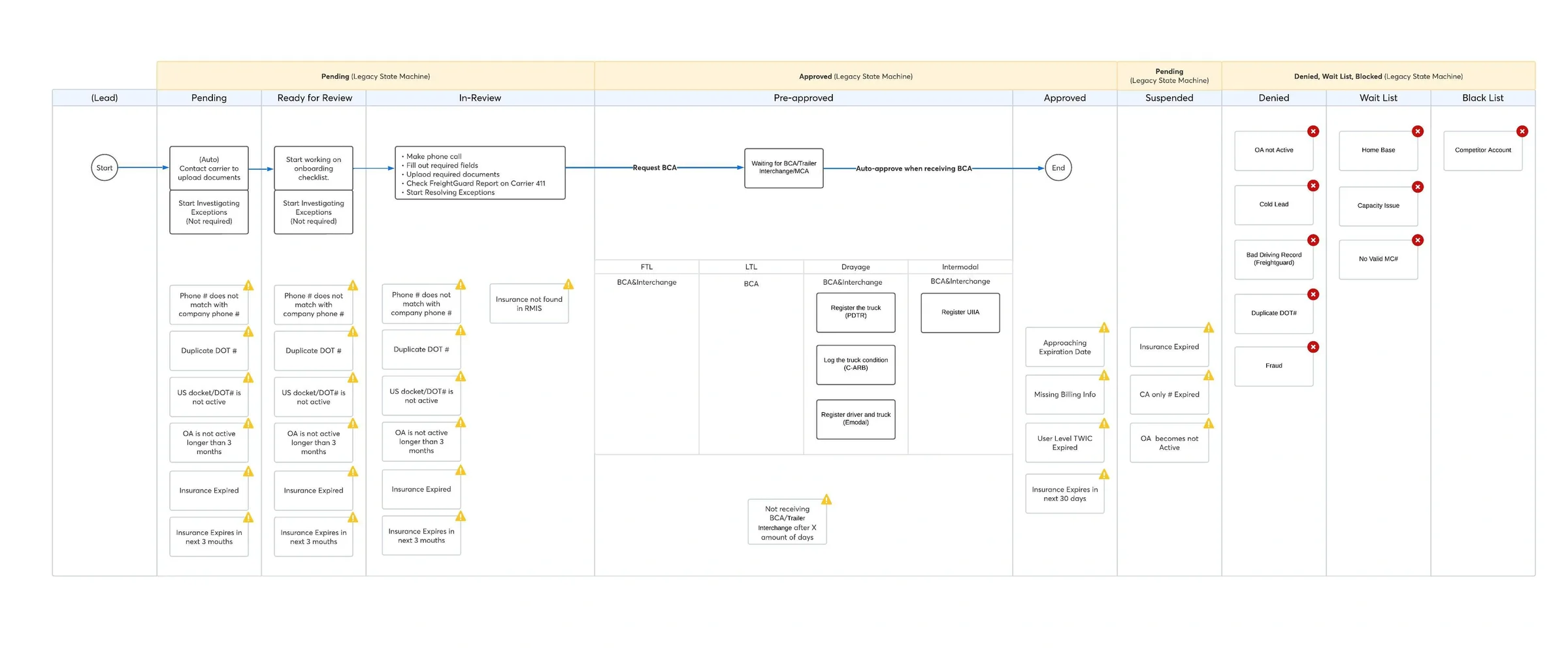
Proposed new state machine
- (Auto) All required documents and info fields are submitted
- (Manual) Users mark status as “In-Review”
- (Manual) Users approve carrier
- (Auto) Agreement documents received.
- (Auto) Insurance expired
- (Auto) Expired insurance updated
UI/UX Design Exploration
After we made the decision on all the data structure and state machines changes, I started to focus on the visual portion of the project.
Proposed New Account Structure and State Machine
The new account structure allows us to present a better information architecture to the users. I also designed an exception list that would be helpful for users to quickly review/approve/deny carriers at different stages during the whole onboarding process.
Final Design
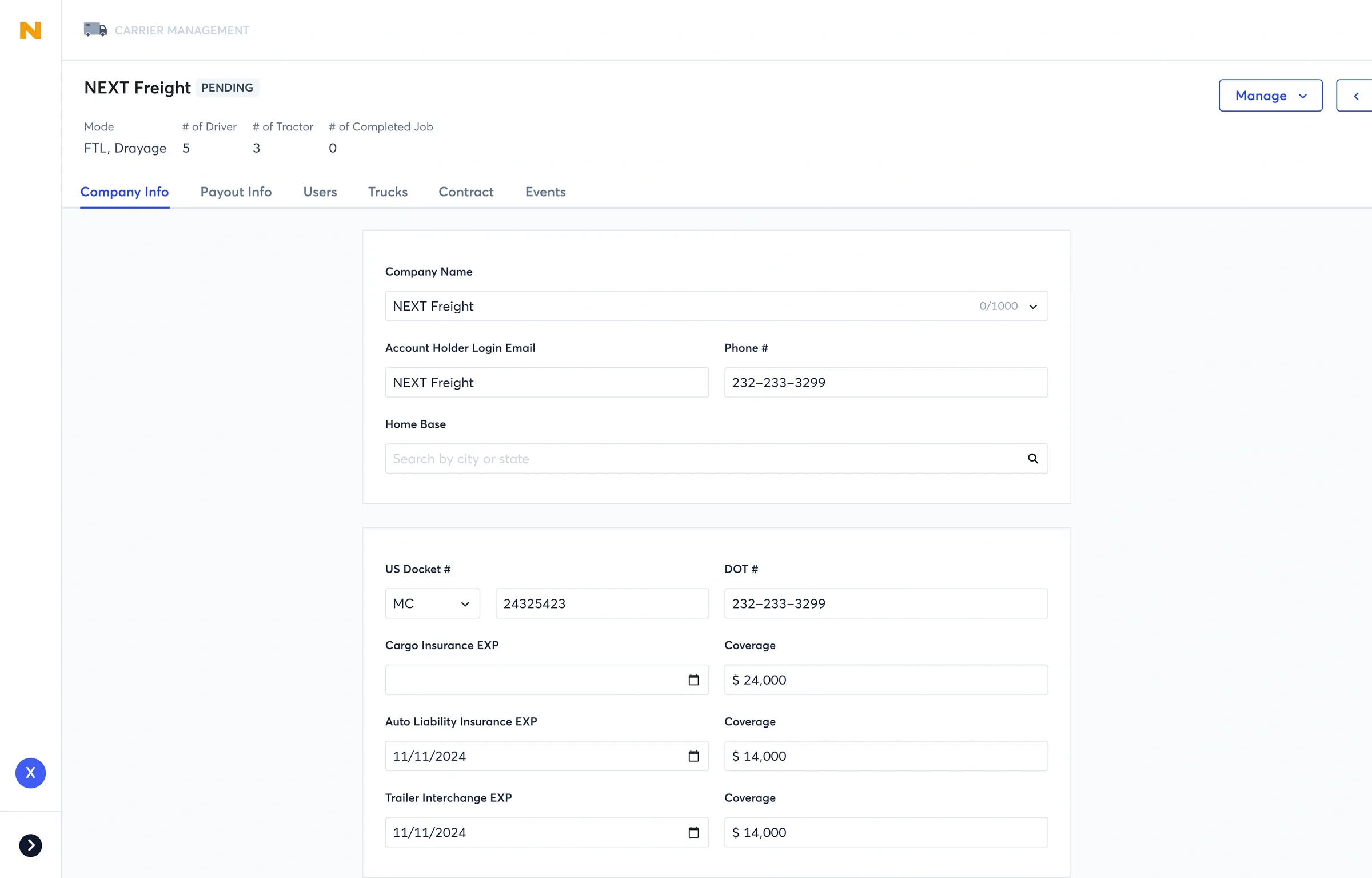
Carrier profile page
A carrier account owns a page that contains multiple tabs to organize different types of info. With the enhanced information architecture design, users can easily locate specific carrier info whenever they want.
Carrier list page
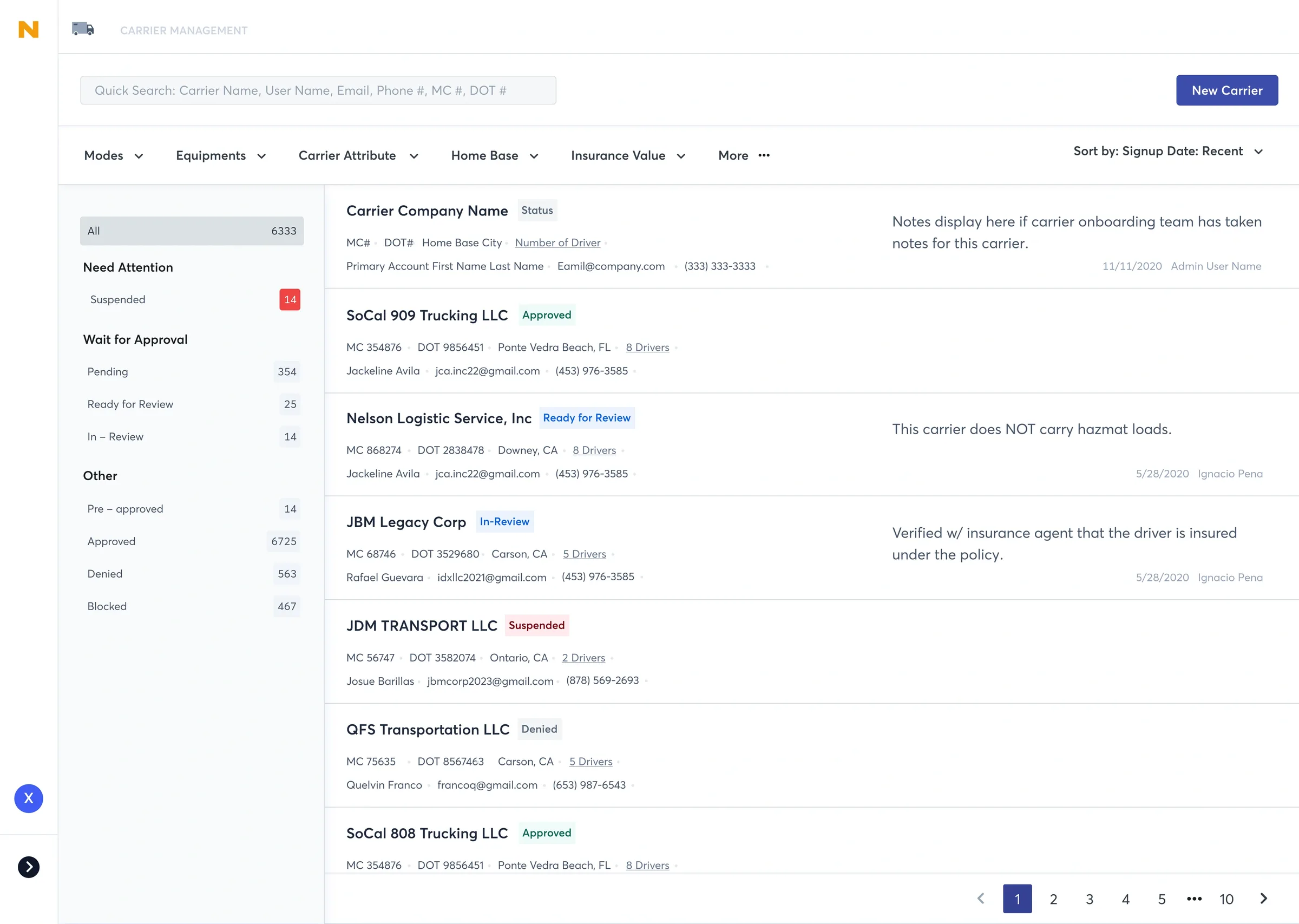
We need to satisfy 4 major user needs on this carrier list:
- Find the new sign-up carriers that are ready for review.
- Call the new sign-up carrier and ask them to submit all required documents.
- Quick search for a specific carrier when that carrier calls us for questions.
- Remind the carrier to update insurance info when the expiration date is close.
Design Details
Global Search
When carrier onboarding team tries to search a particular carrier in our system, they usually have only one type of info, sometimes it’s the carrier business owner’s name, sometimes it’s the fleet driver’s name, sometimes it’s the company’s identity number. Therefore, we need to have a global search capability so that our users can quickly find the account with fuzzy key words.
Filters
Sometimes global search can only reduce the list to a certain amount, in this case, we need more filters to further narrow down the result so that users can get the exact account.

Grouping for Standard Workflow
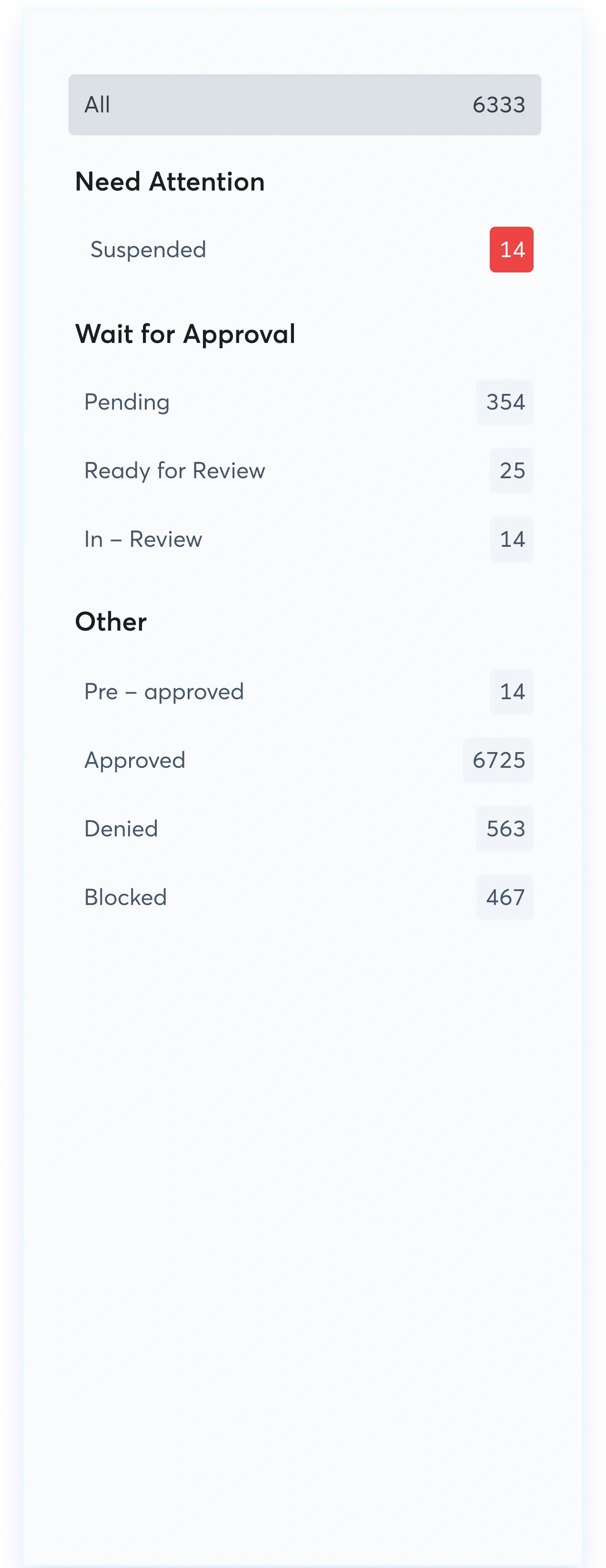
Besides search and filter, I also want to navigate the users to complete their daily routine smoothly.
The “Need Attention” section includes time sensitive tasks, therefore it’s top on the list. Users need to update the insurance or inform the carriers that their insurance are expired.
“Wait for Approval” means action required to help qualified carrier onboard.
“Other” means the carriers under this section don’t require further actions.

Carrier Card
I pick the most helpful info that the users want to display on the list without going into the carrier page.
It includes company name, MC/DOT #, home base city, account holder name/email/phone #.
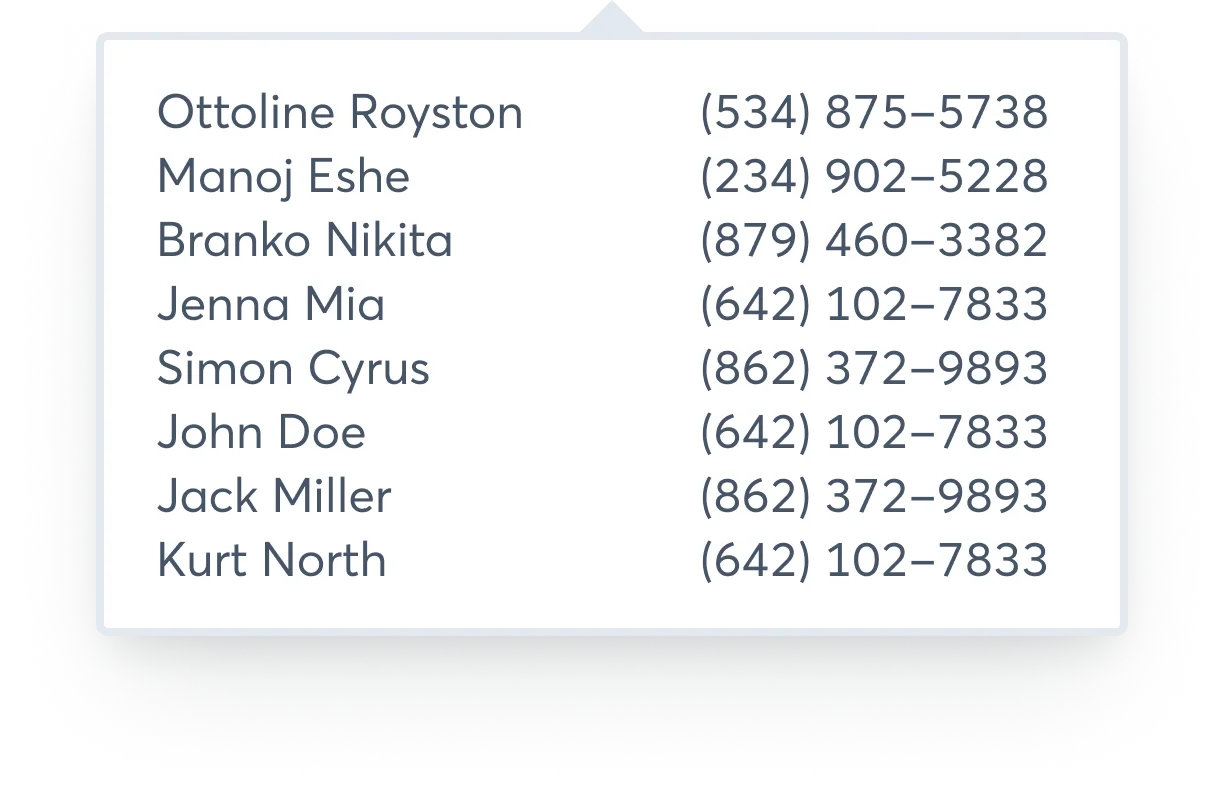
Clicking the “Number of Drivers” will show the full driver list of this carrier (fleet).
Carrier Notes
Carrier notes is a essential tool for users in various scenarios. Especially during the reviewing process, displaying notes on the list reminds the users know what’s the action item for next step.
It is also a communication tool among onboarding team users.
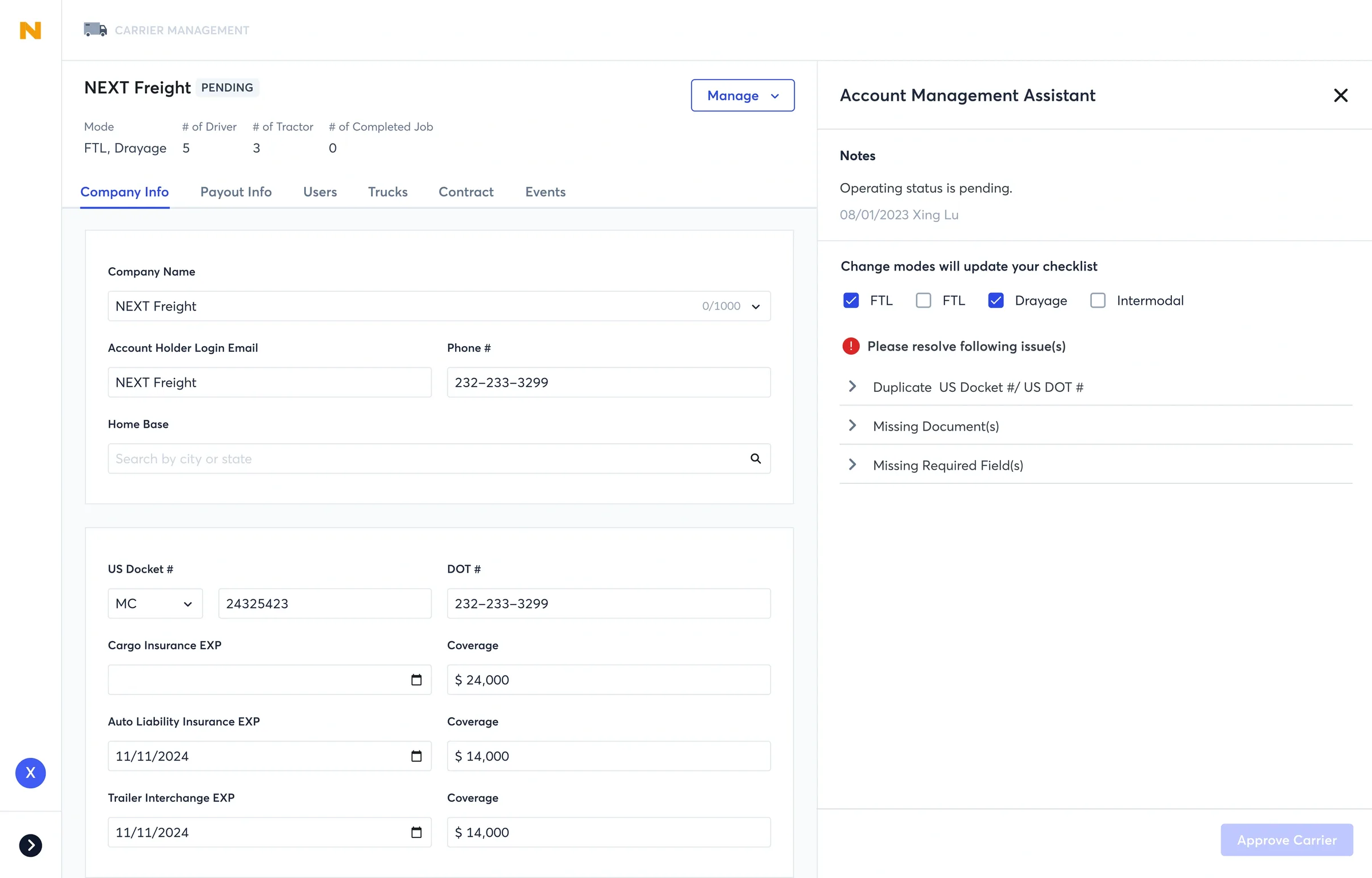
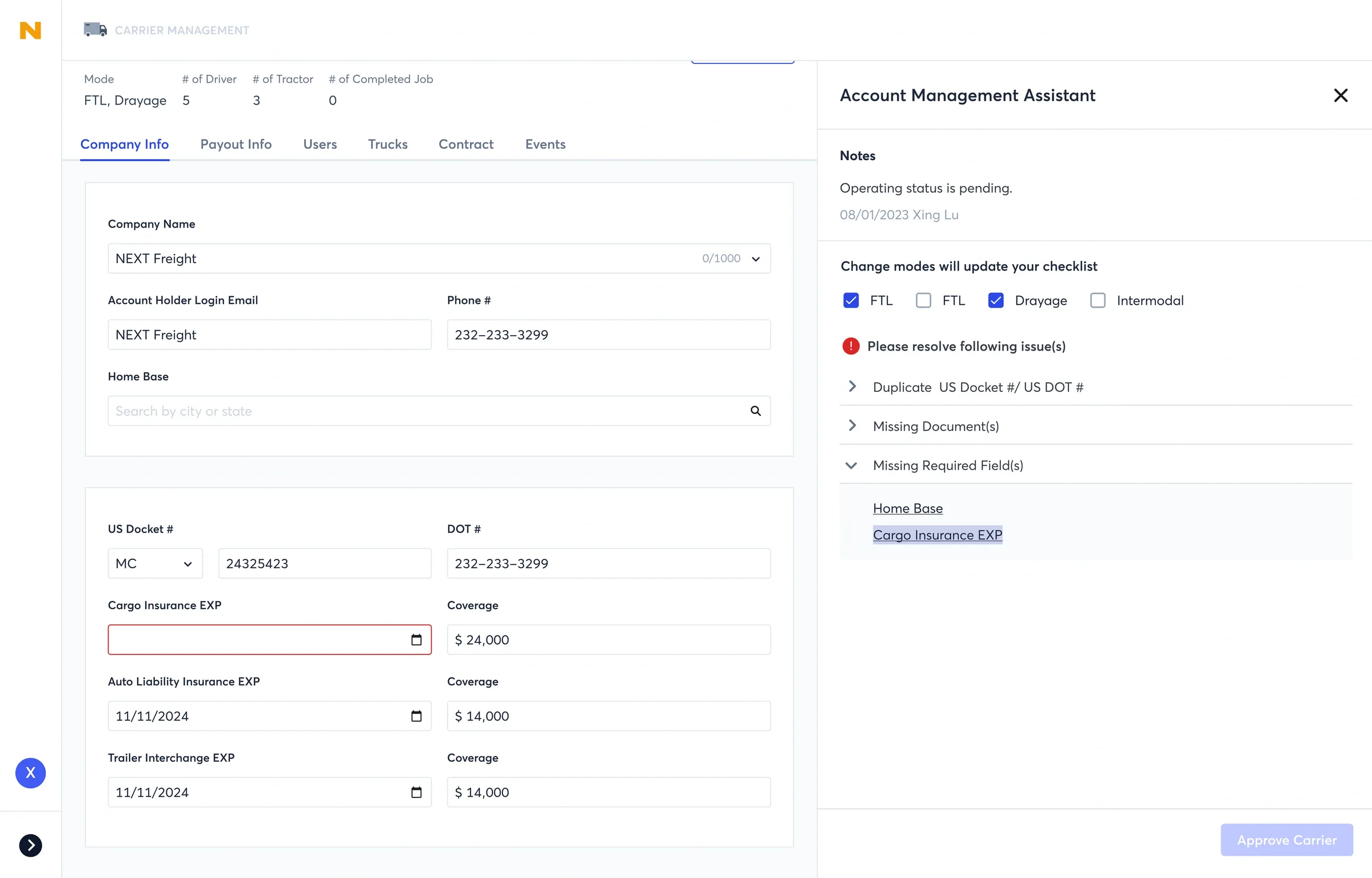
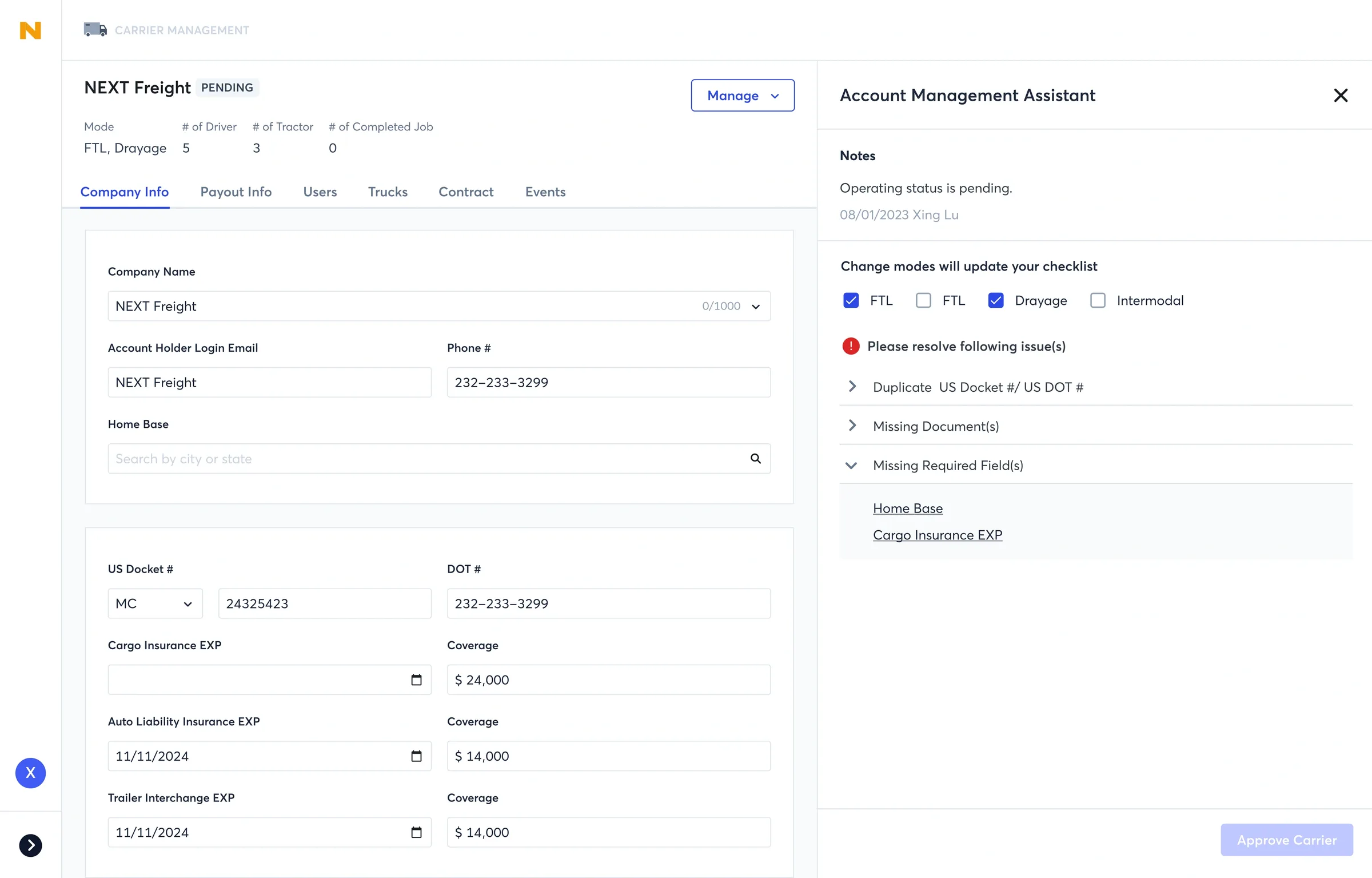
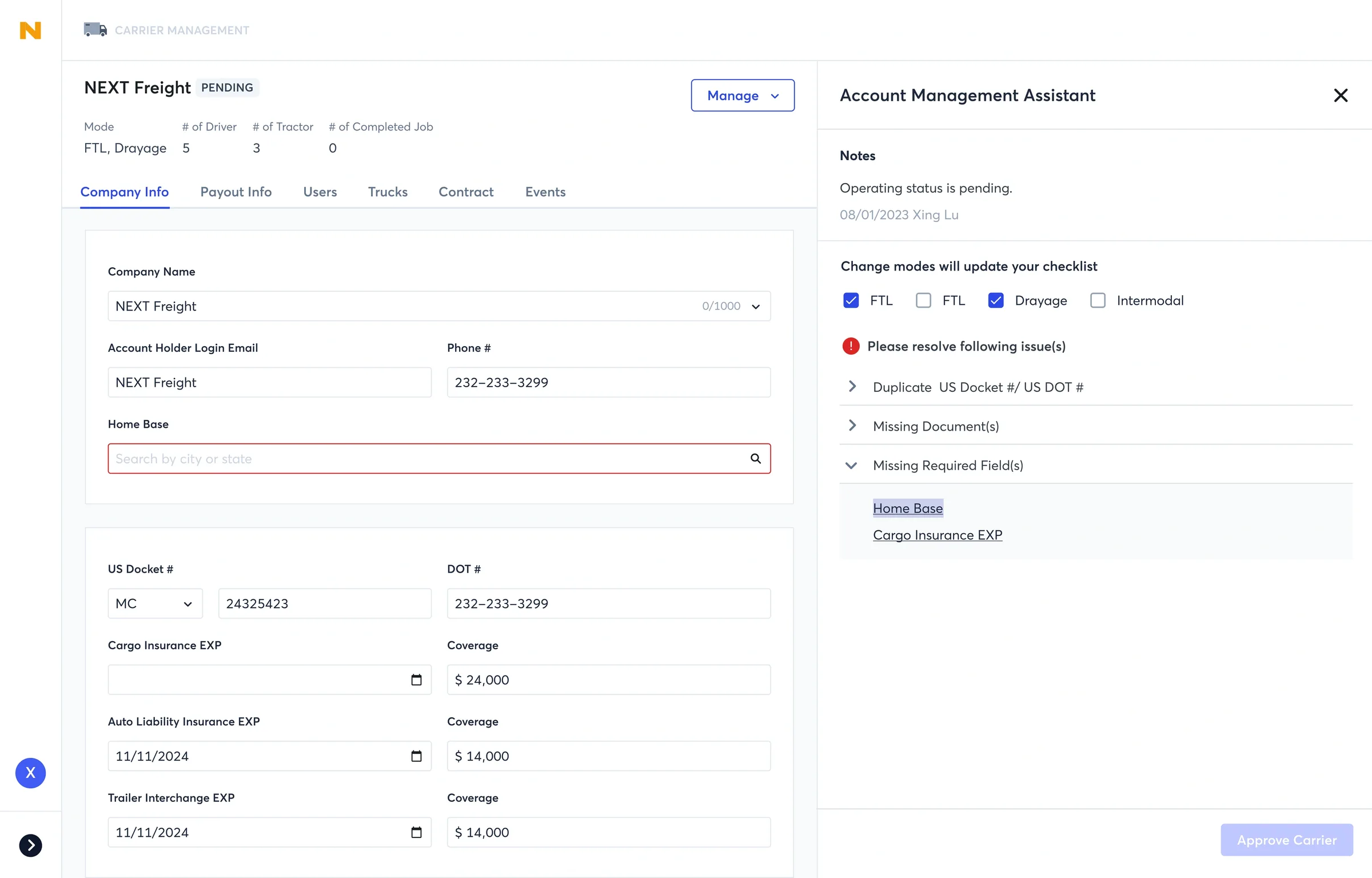
Enhancement - Account Management Assistant on Carrier Page
Users need to identify and resolve exceptions before they can approve a carrier. I consolidated these exceptions and turned them into a to-do list to help them quickly find out what’s missing before they can click the ‘approve’ button.
Data • Before & After
| Task | Before | After | Enhancement |
|---|---|---|---|
| Search a driver by name / email / phone # | 3~8 clicks2~8 seconds | 1 click1 second | 67~88% clicks50~88% seconds |
| Find out carrier that has been disapproved due to expired insurance | ∞ | 0 | 0 → 1 |
| Turn an OO account into a Fleet account | 10 mins | 0 | 0 → 1 |
| Find all drivers under a fleet | 3~8 clicks2~8 seconds | 2 clicks2 seconds | 33~75% clicks0~75% seconds |